SStackora guideMenu ▾
Stackora guide
Setup wizard
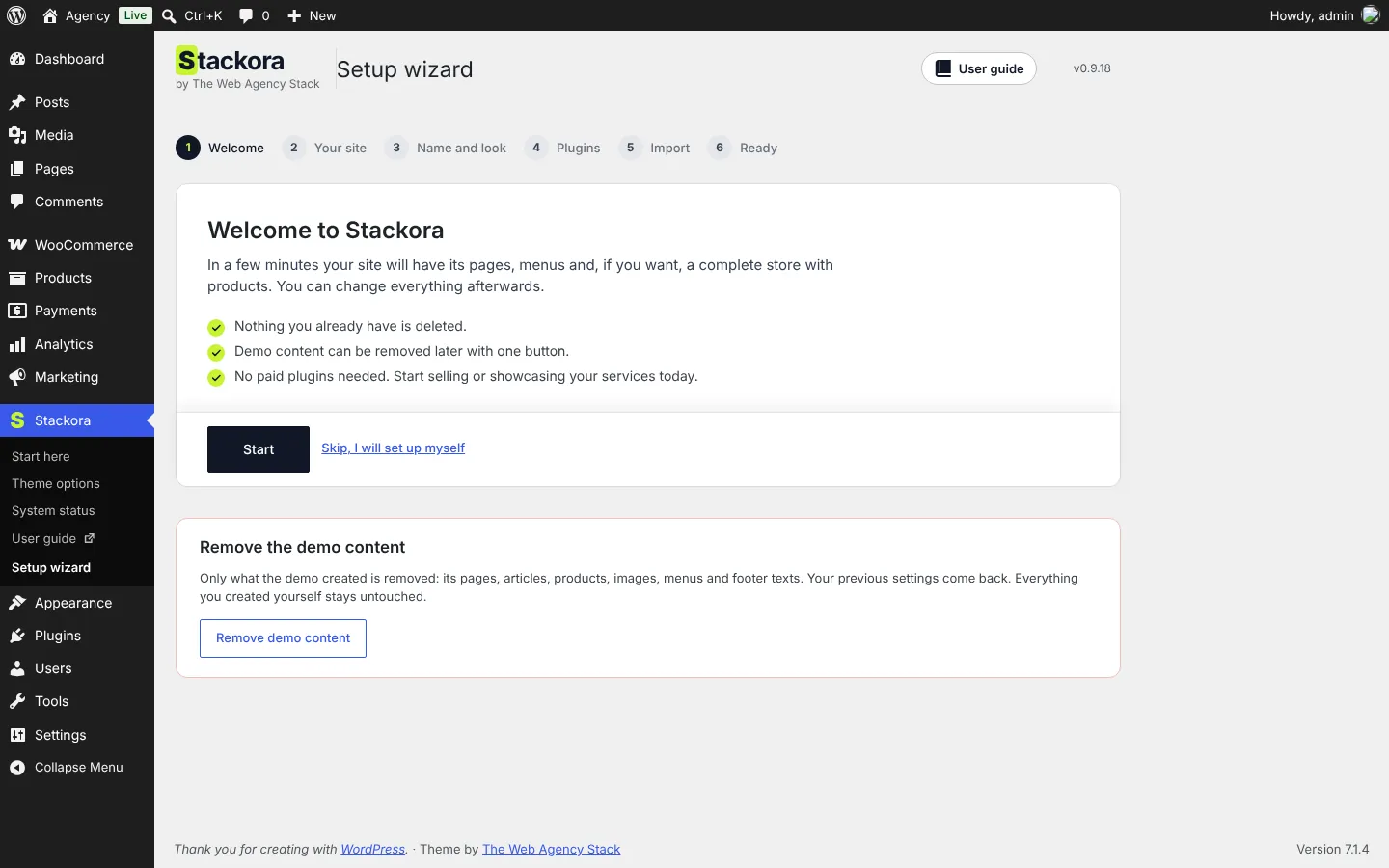
Six steps: welcome, demo, name and look, free plugins, import, ready.
Open Stackora → Setup wizard. It takes about five minutes and you can run it again at any time.
1. Welcome
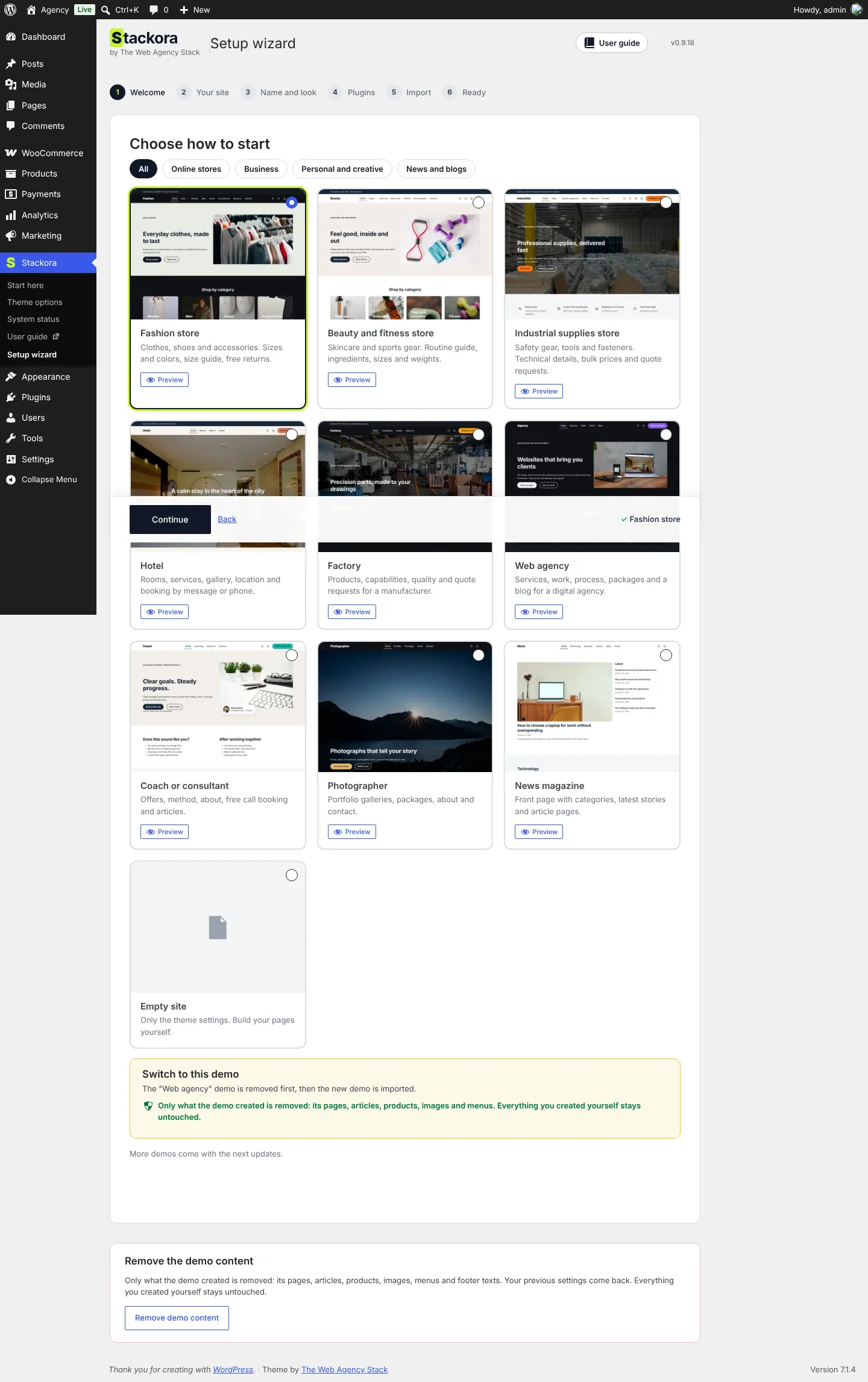
2. Your site: choose a demo
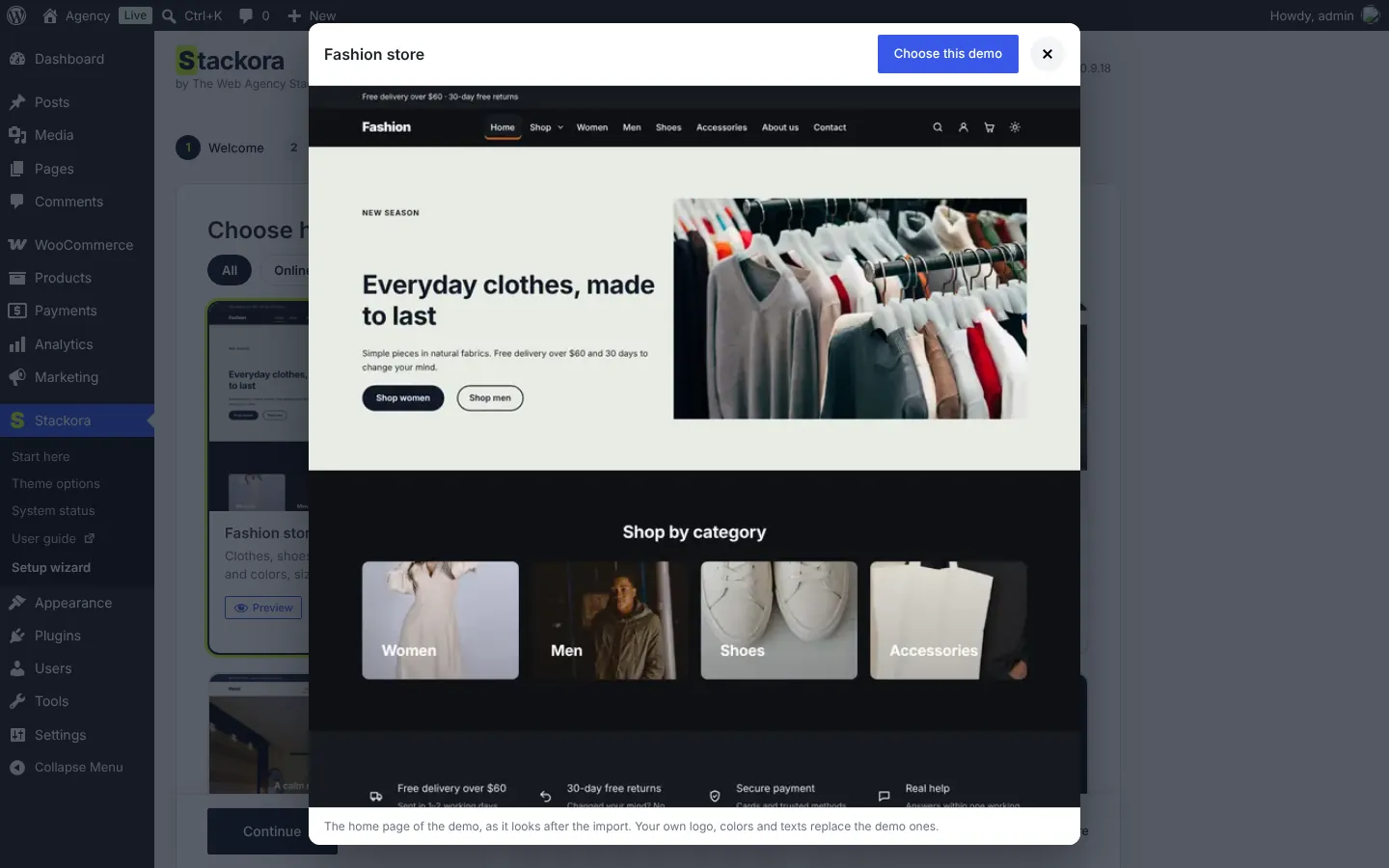
Filter by Online stores, Business, Personal and creative or News and blogs. Click Preview under a demo to see its whole home page before you choose. The button at the bottom stays visible while you scroll, with the name of the demo you picked.
3. Name and look
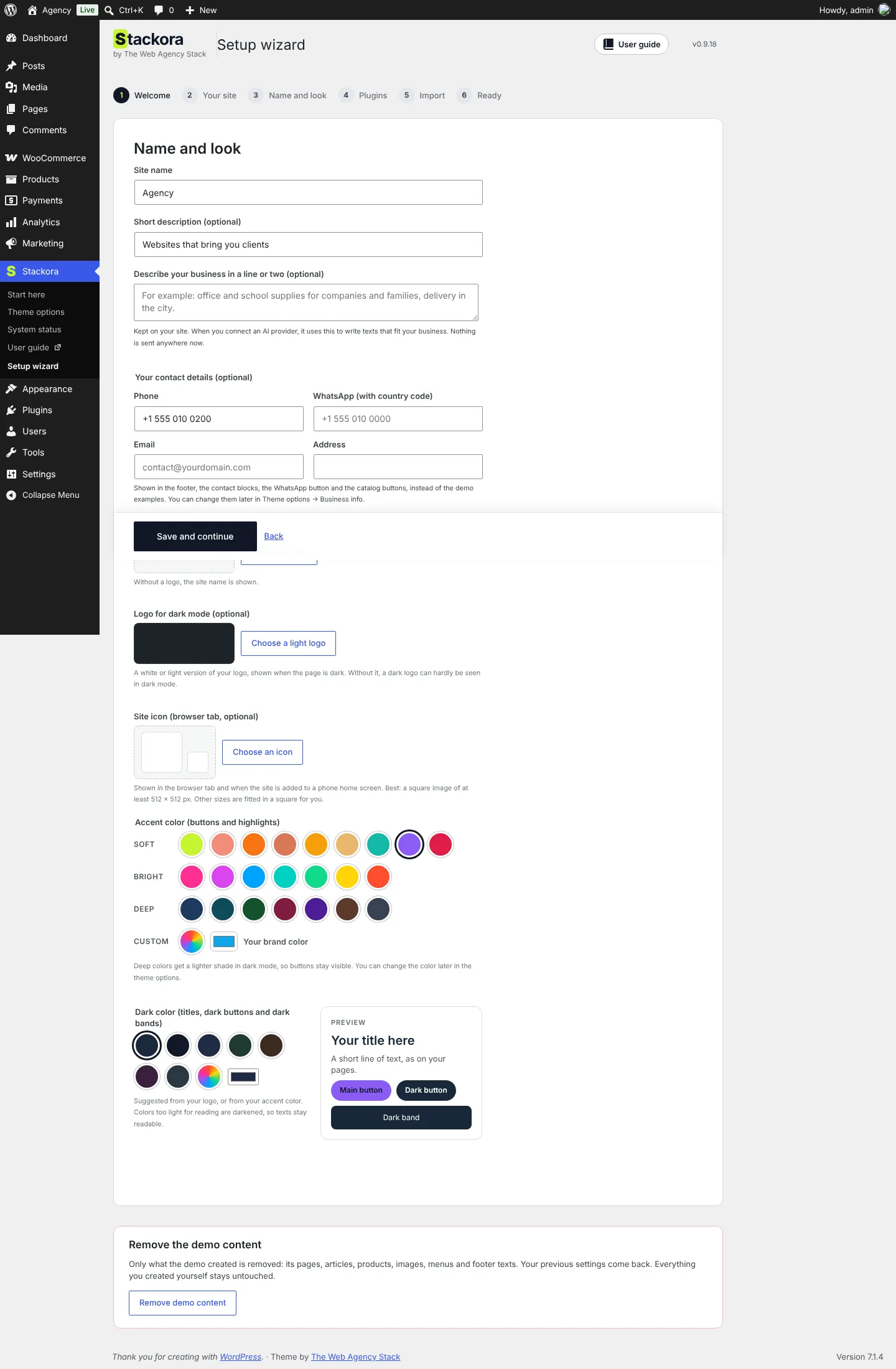
Site name, short description, logo, a light logo for dark mode, site icon and your two colors. Your phone, WhatsApp, email and address replace the demo contact details everywhere.
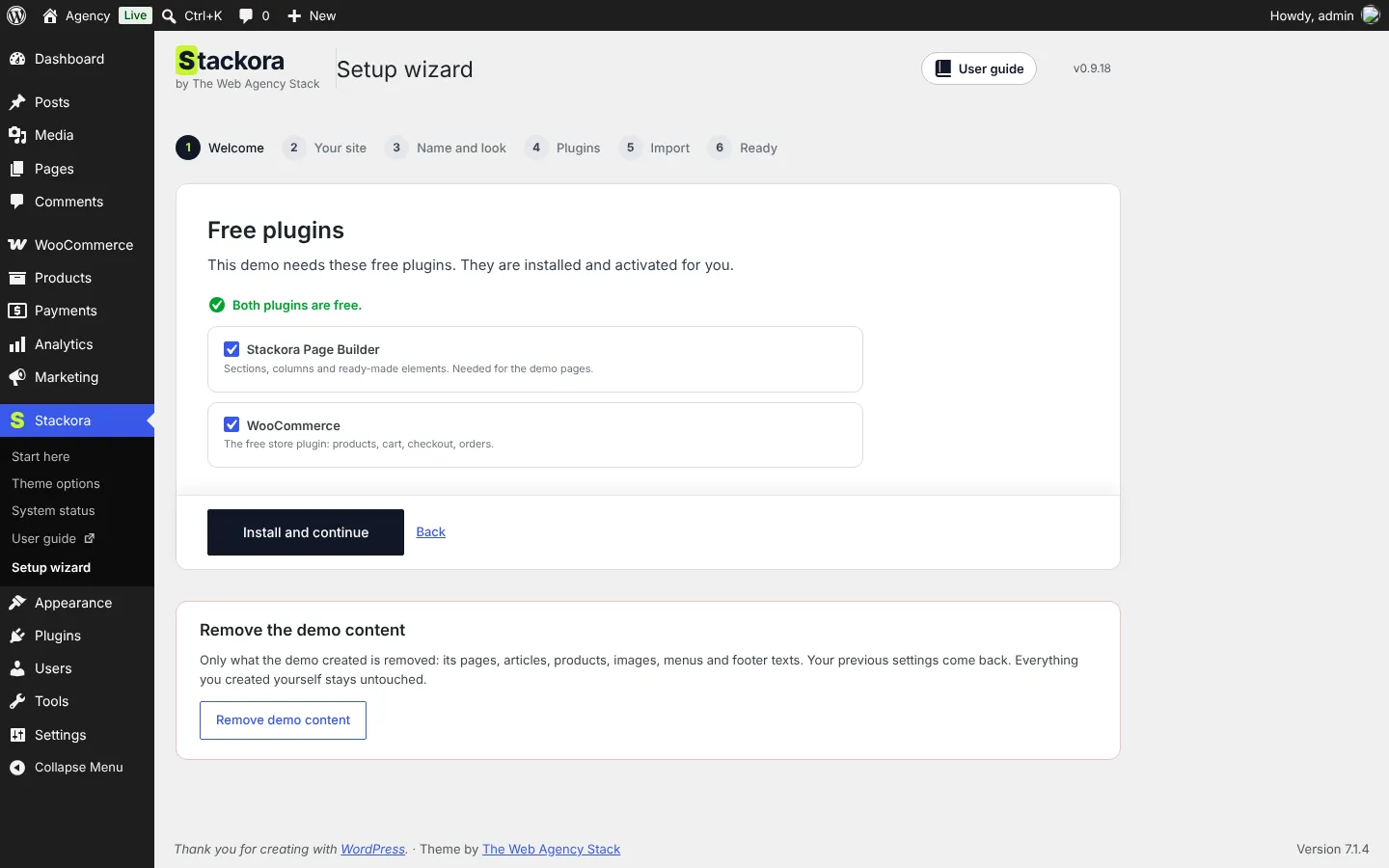
4. Free plugins
Stackora Page Builder for every demo, WooCommerce for the stores. Both are free and installed for you.
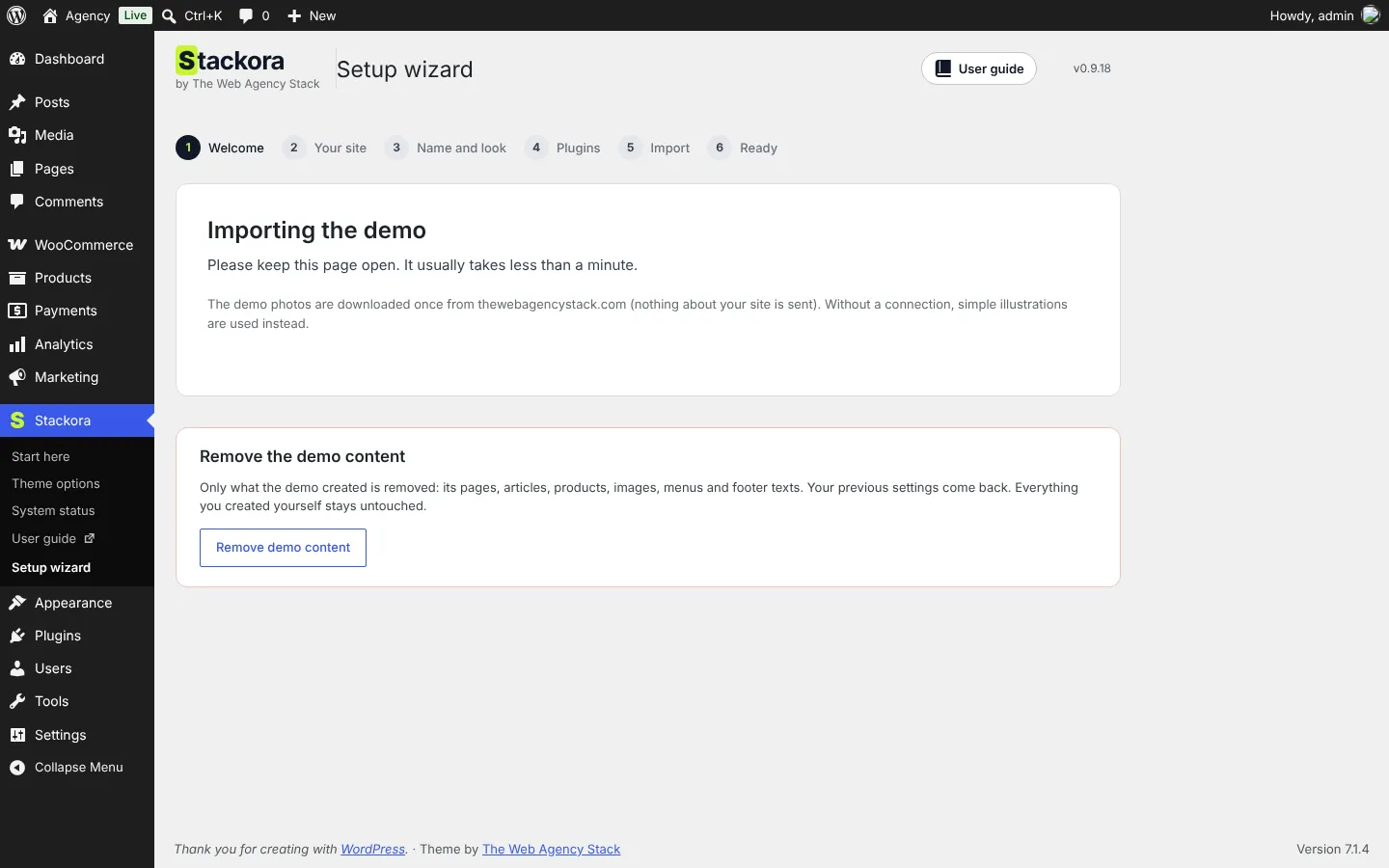
5. Import
Pages, menus, products or articles and the demo photos. Keep the page open; it usually takes less than a minute. If the photos cannot be downloaded, simple illustrations are used and you replace them later.
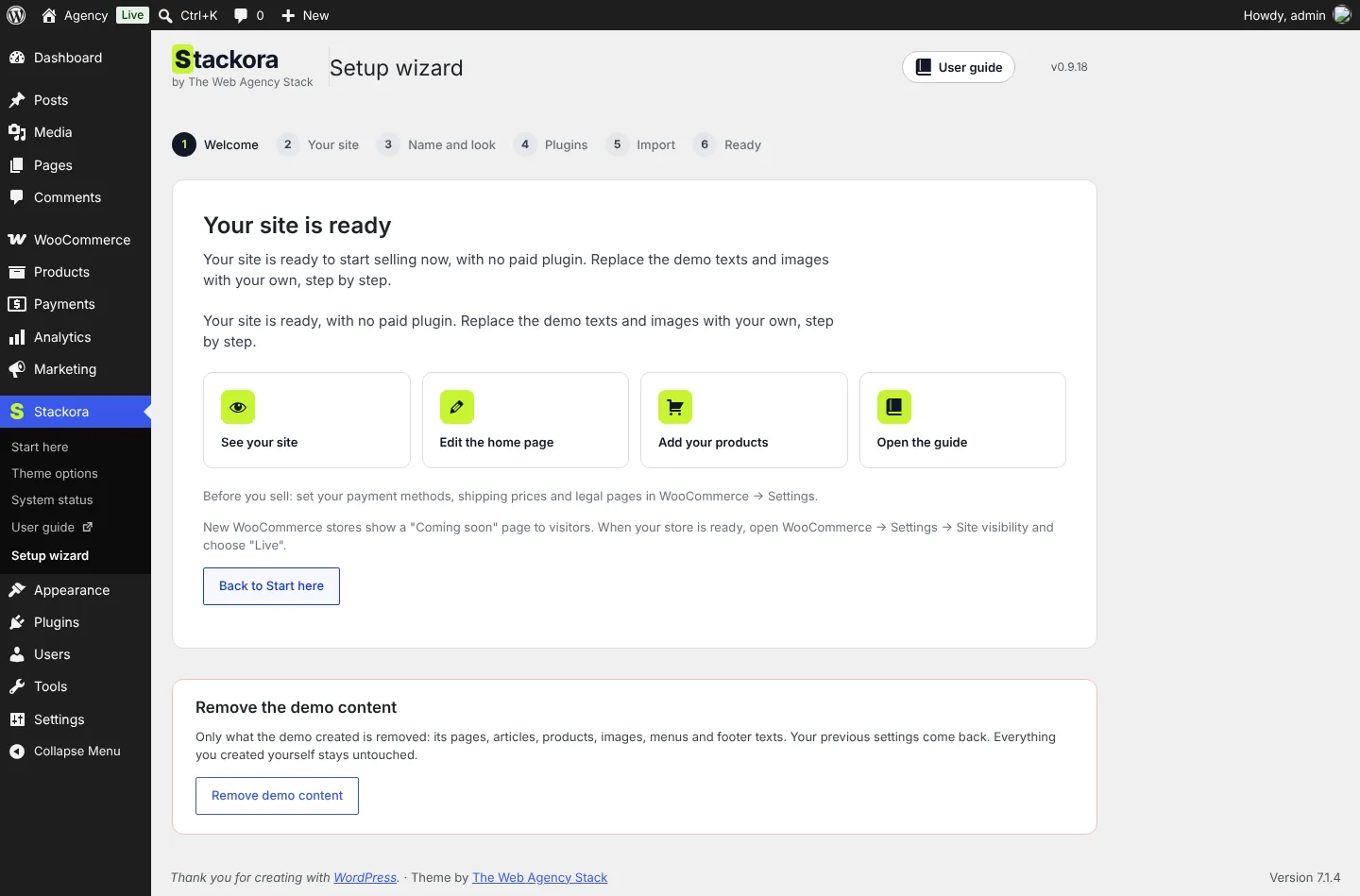
6. Ready
Switch or remove a demo
Choose another demo in step 2: the current one is removed first, in the same run. Only what the demo created is removed: its pages, articles, products, images, menus and footer texts. If you changed a demo page, the wizard asks whether to keep it.
Your site is ready to show your services or take orders the same day.
Orders by WhatsApp or phone, cash on delivery and bank transfer work from day one. Card payments need a Stripe or PayPal account, which can take a few days to verify.
Before you sellSet payment methods, shipping and legal pages in WooCommerce → Settings. New stores show a “Coming soon” page: switch to Live in WooCommerce → Settings → Site visibility when ready.
Stackora by The Web Agency Stack · Screenshots taken on WordPress 7.1.4 with Stackora 0.9.20.