SStackora guideMenu ▾
Stackora guide
Install and update
Upload one zip. After that, new versions show in your dashboard and update in one click.
Install the theme
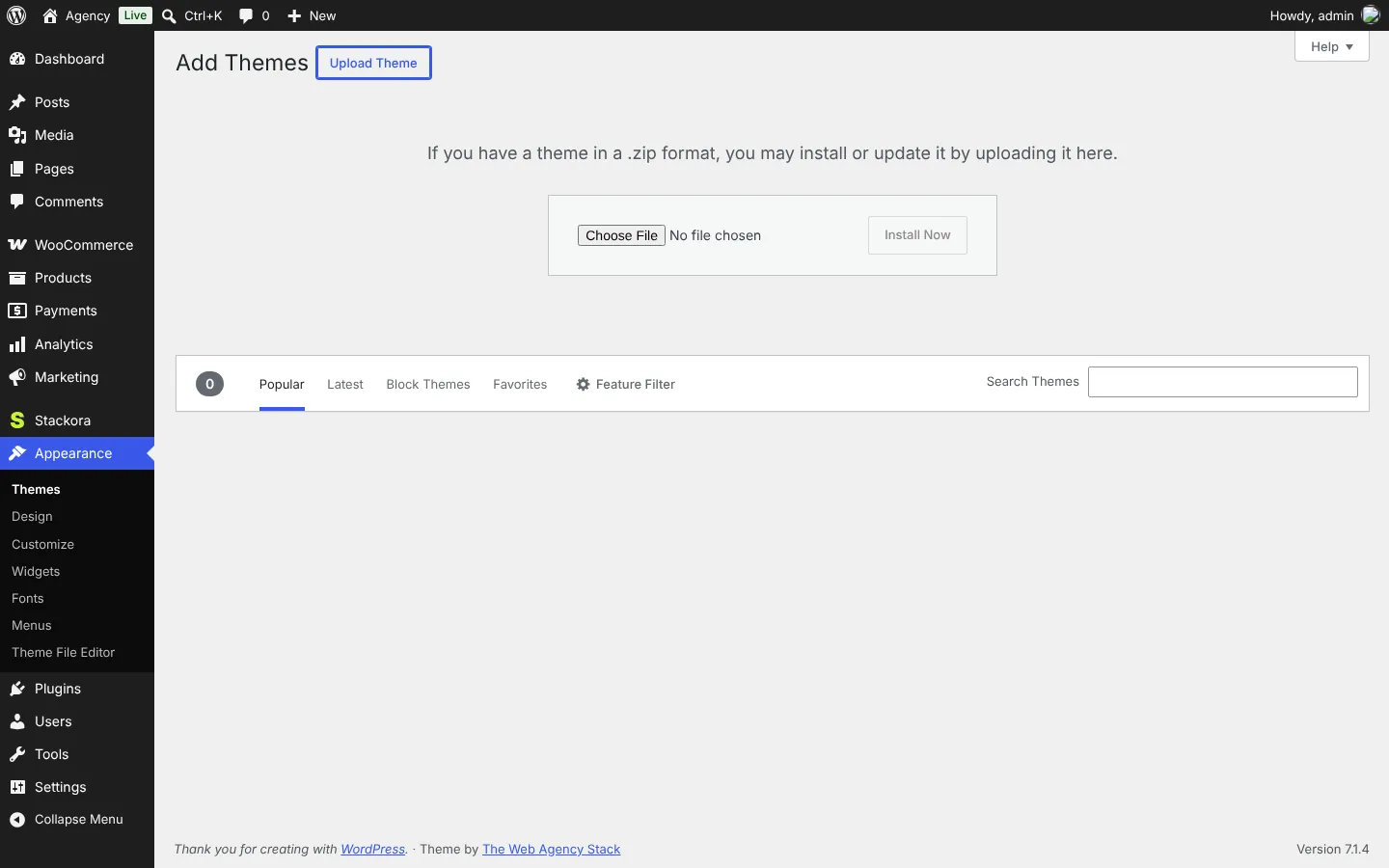
- In WordPress, open Appearance → Themes → Add Theme and click Upload Theme.
- Choose
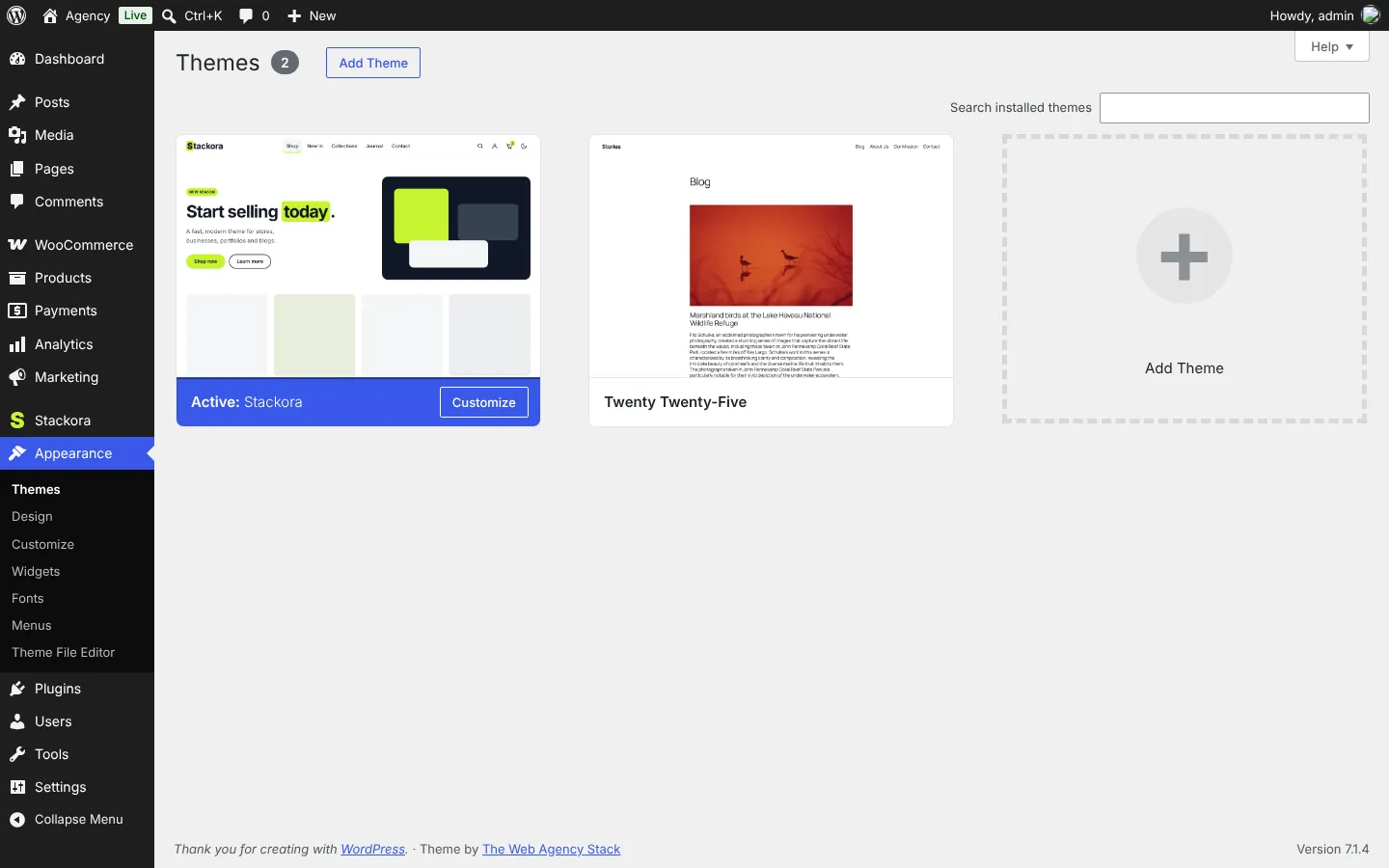
stackora-0.9.24.zipand click Install Now, then Activate. - Stackora opens Stackora → Start here. Click Open the wizard.
Update the theme
Stackora updates itself like any theme from WordPress.org. Your settings, pages and images are never touched by an update.
Automatic notice, one click (recommended)
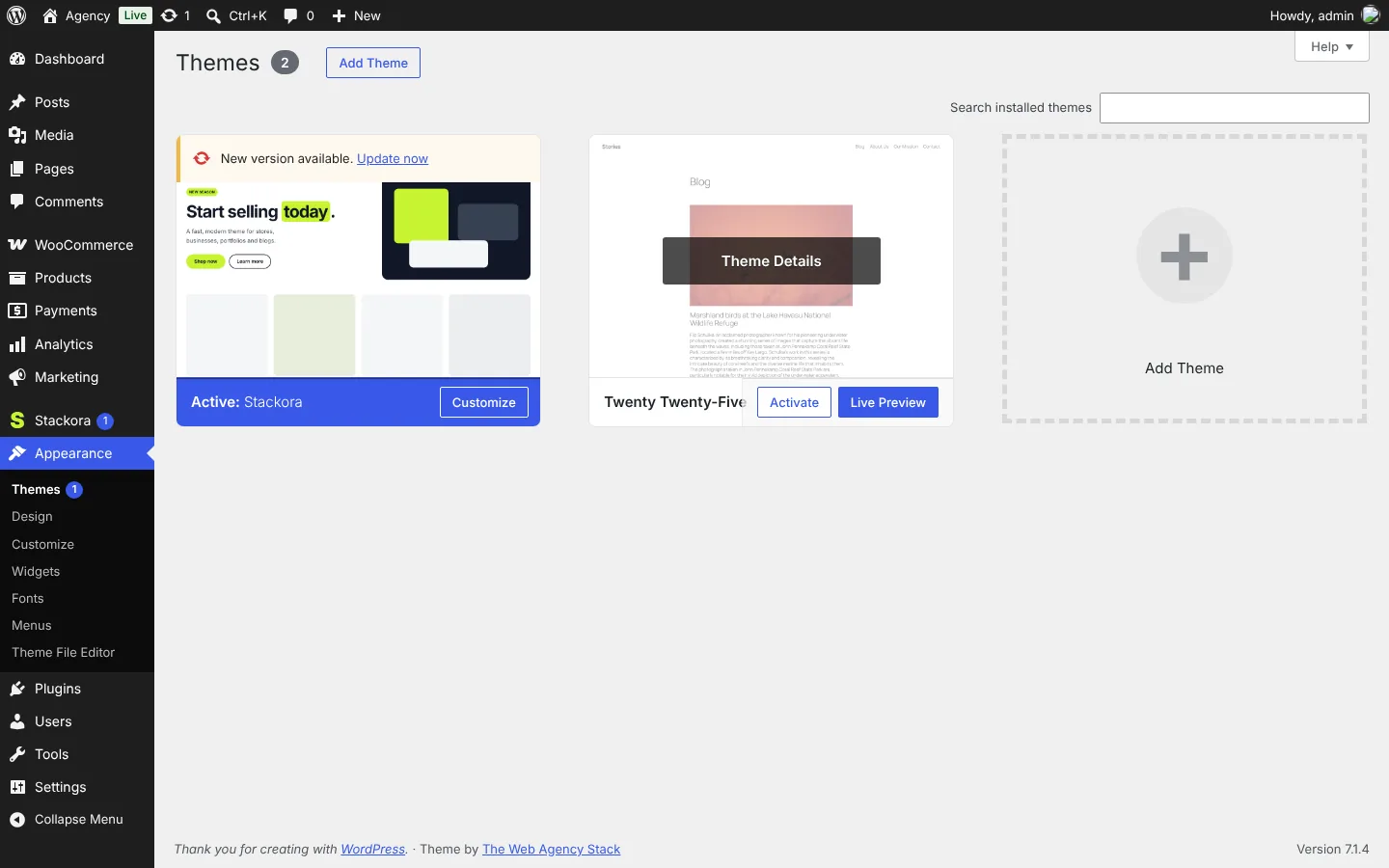
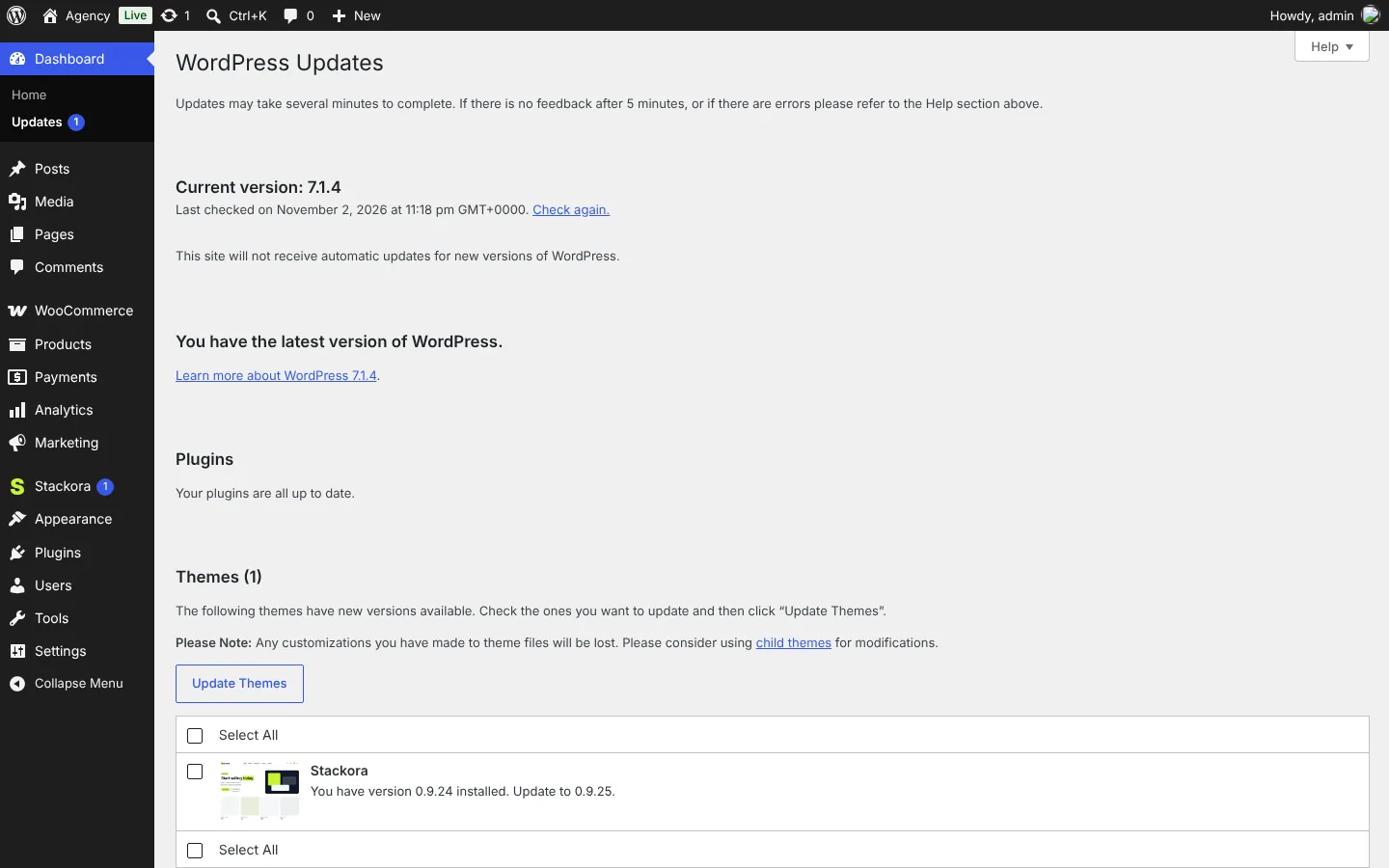
Twice a day, WordPress asks the Stackora website whether a new version exists. When one does, you see it in two places:
- Appearance → Themes: a New version available. Update now line appears on the Stackora card.
- Dashboard → Updates: Stackora is listed under Themes. Tick it and click Update Themes.
Automatic updatesOn the Stackora card, open Theme Details and click Enable auto-updates: new versions then install by themselves. No key, no account: nothing is sent except the question “is there a new version?”.
Versions before 0.9.21Versions before 0.9.21 can not see the notice. Install the newest zip once by hand (below); after that, every update shows in your dashboard.
By uploading the new zip
- Upload the new zip: Appearance → Themes → Add Theme → Upload Theme.
- WordPress sees that Stackora is already installed and shows Replace active with uploaded. Click it.
By replacing the files
- Unzip the new version on your computer.
- With your host’s file manager or FTP, replace the folder
wp-content/themes/stackorawith the newstackorafolder.
Stackora Page Builder updates
The page builder comes inside the theme. When a new theme version carries a newer builder, WordPress shows it as a normal plugin update in Plugins and Dashboard → Updates. Click Update now: the copy inside the theme folder is installed, nothing is downloaded.
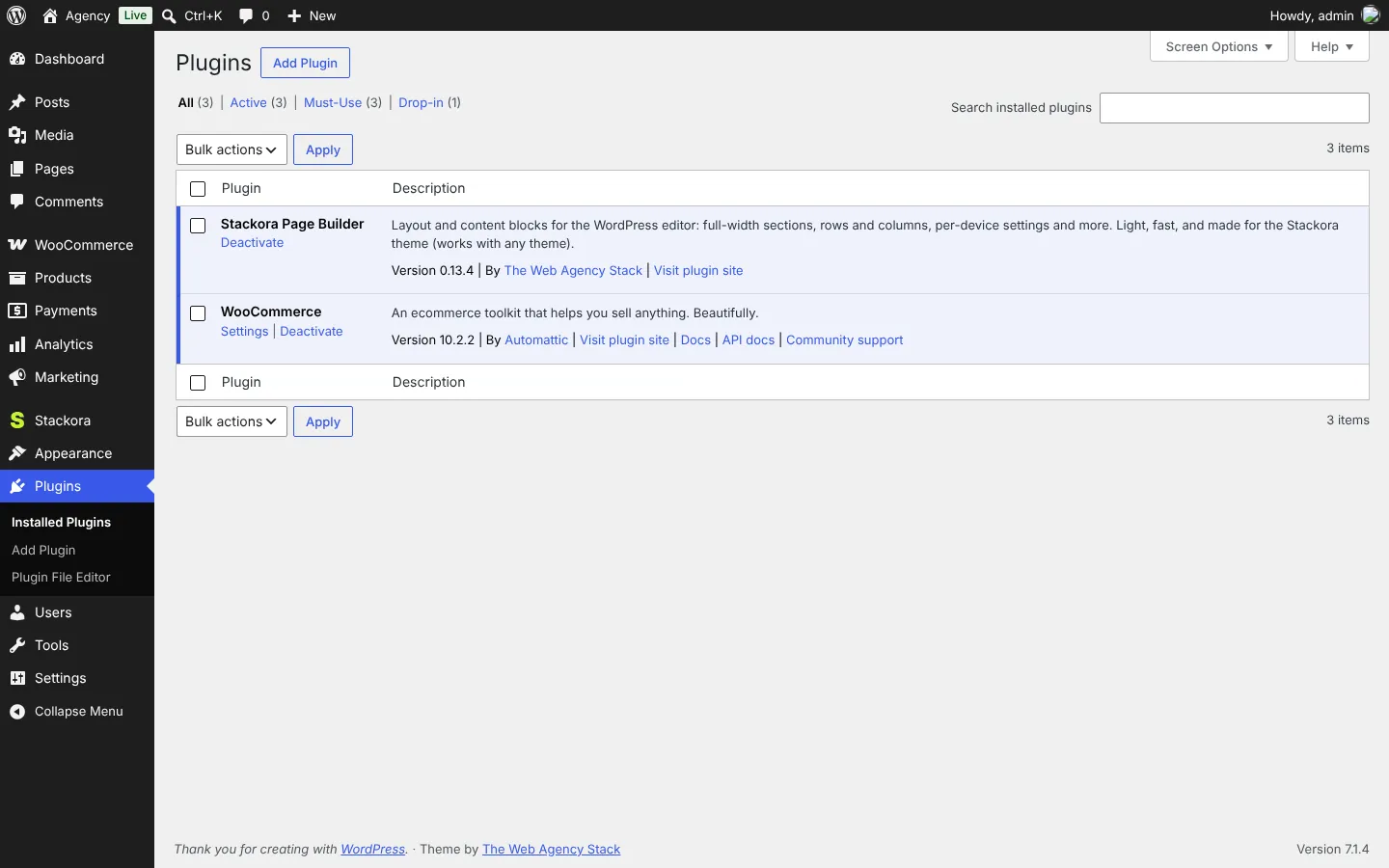
Good to knowStackora and its builder carry an “Update URI” line, so WordPress never replaces them with a different theme or plugin of the same name from WordPress.org.
Stackora by The Web Agency Stack · Screenshots taken on WordPress 7.1.4 with Stackora 0.9.20.