SStackora guideMenu ▾
Stackora guide
Page builder
Sections, rows, columns and elements. Click, change, save.
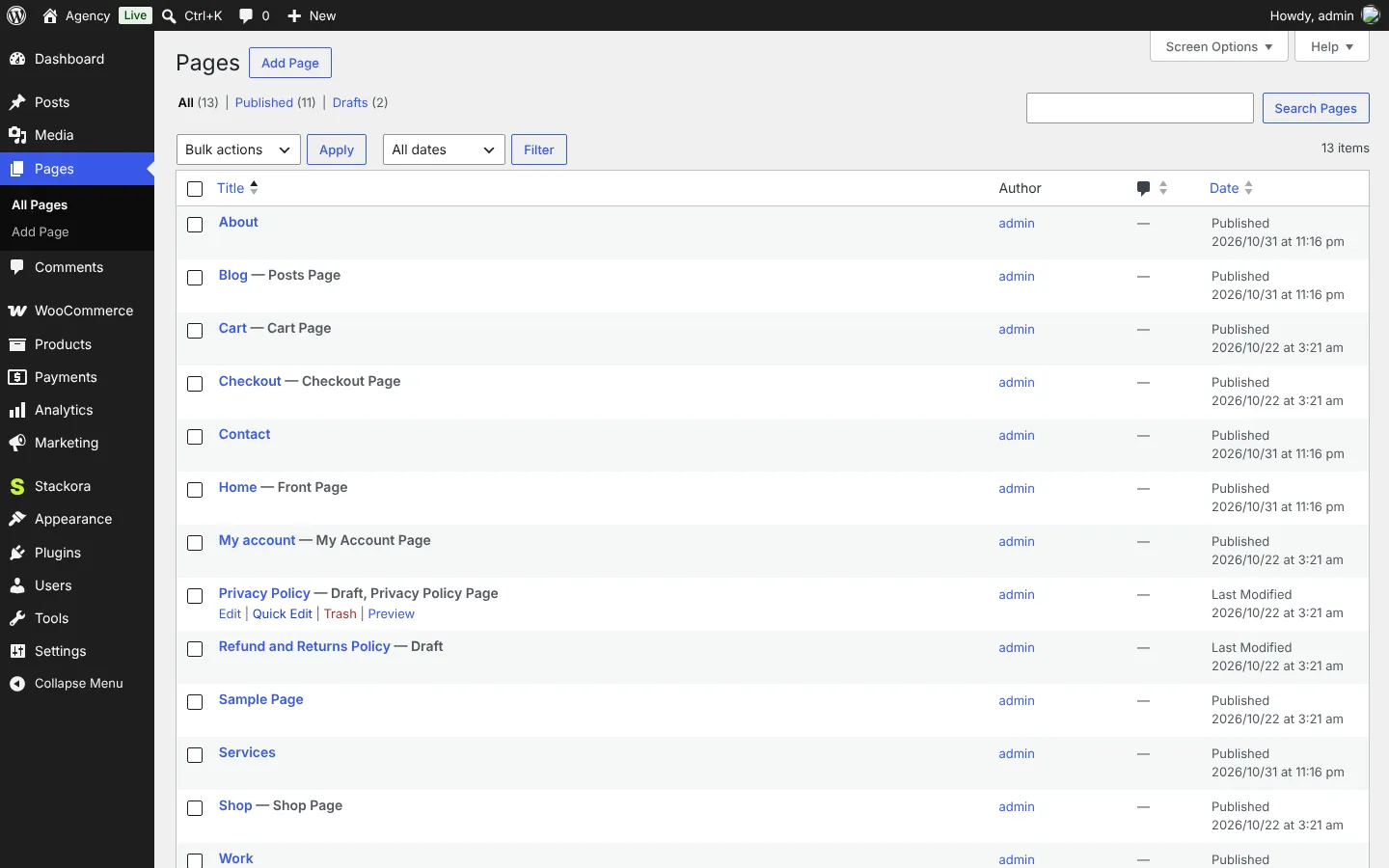
Stackora Page Builder works inside the WordPress editor. Open any page from Pages. You see the page as boxes: sections, rows, columns and elements.
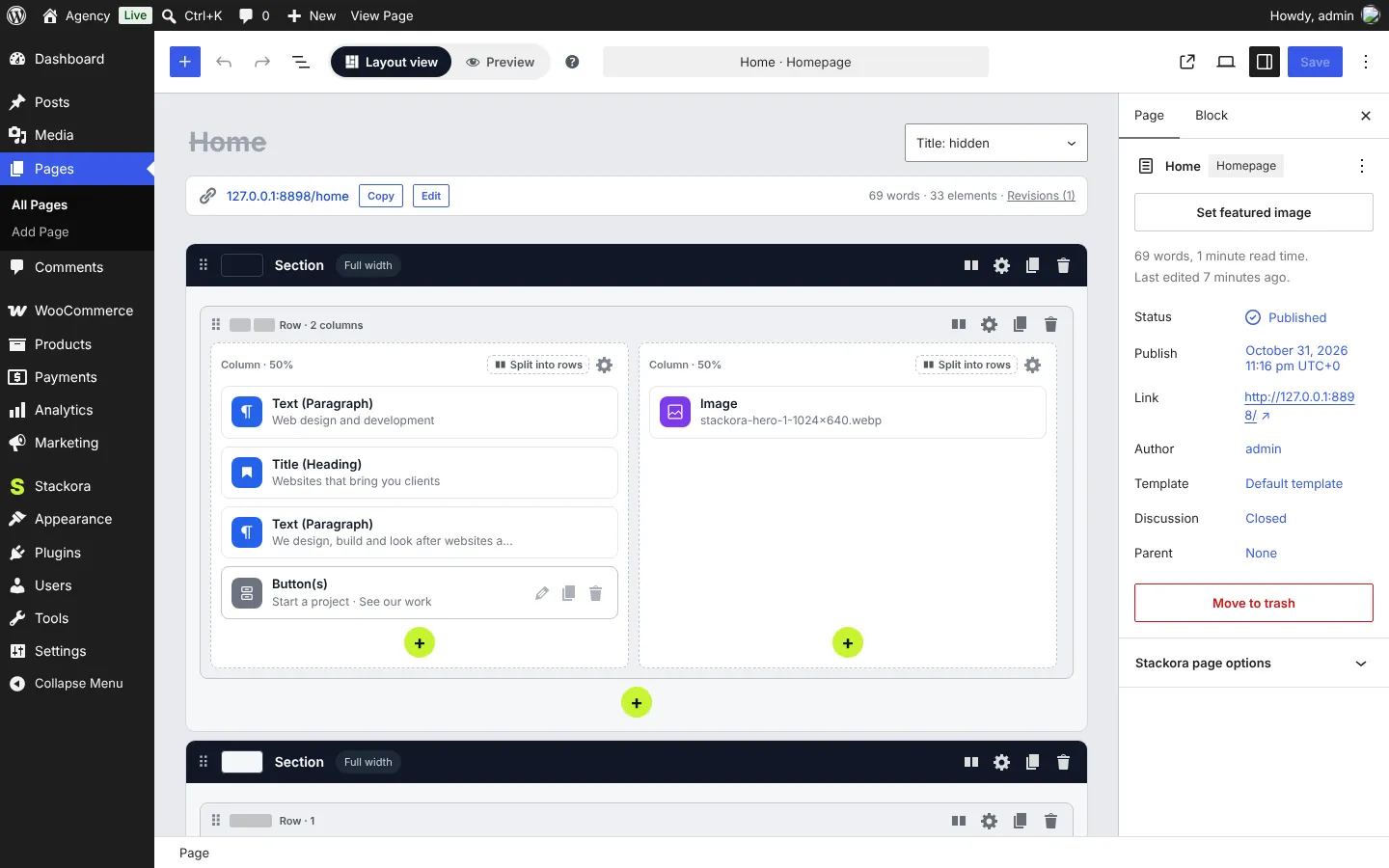
Layout view
Layout view shows the structure; Preview shows the page as visitors see it. Each section has buttons to change columns, open its settings, copy or delete it. Split into rows adds a row inside a column.
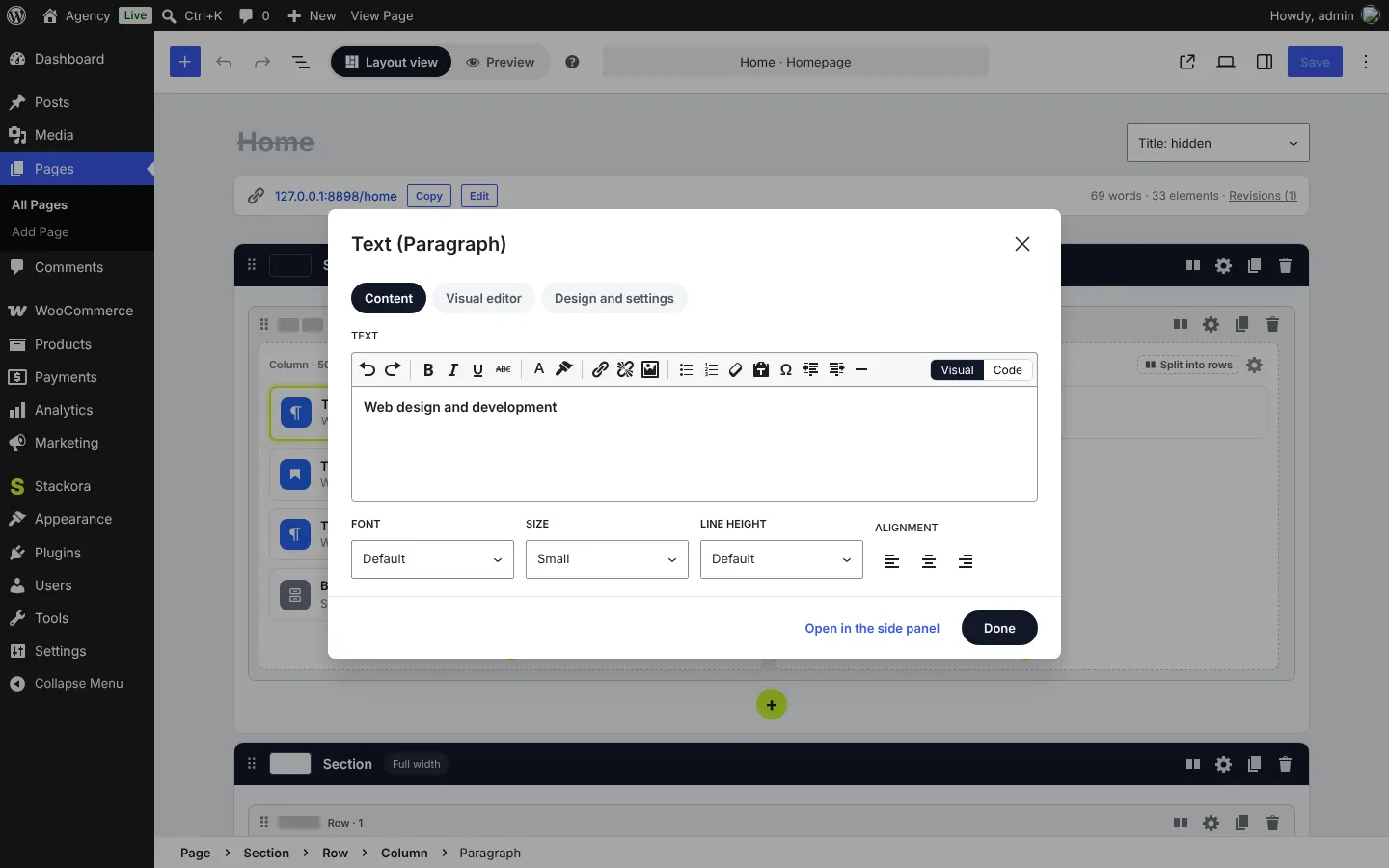
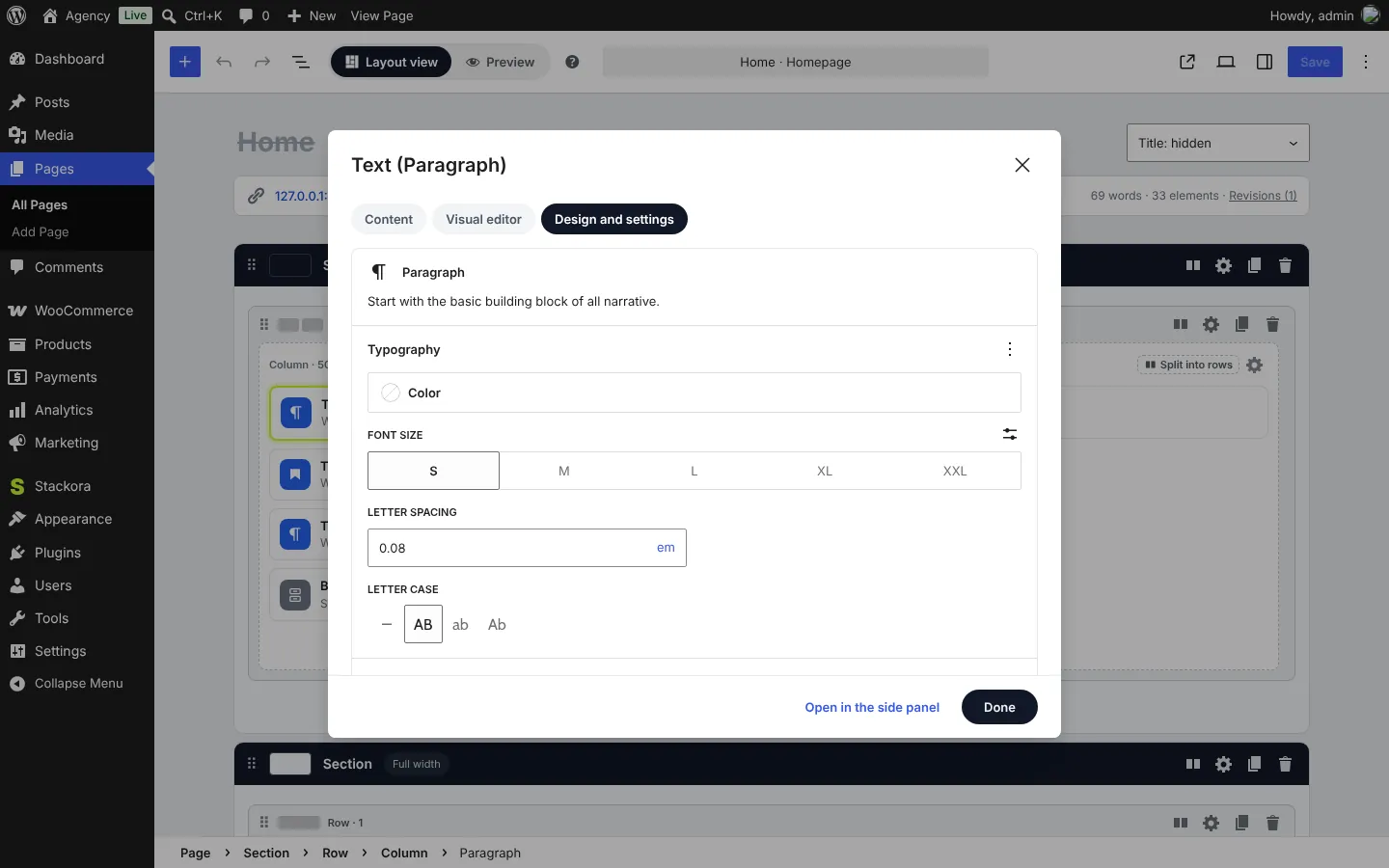
The edit window
Click an element to open it. Four tabs:
| Tab | What it does |
|---|---|
| Content | The text with bold, links and lists; font, size, line height and alignment. |
| Visual editor | Edit the element as it looks on the page. |
| Design and settings | Colors, typography, spacing and the block’s own settings. |
| Write with AI | Only when an AI provider is connected. See Write with AI. |
Ready-made sections
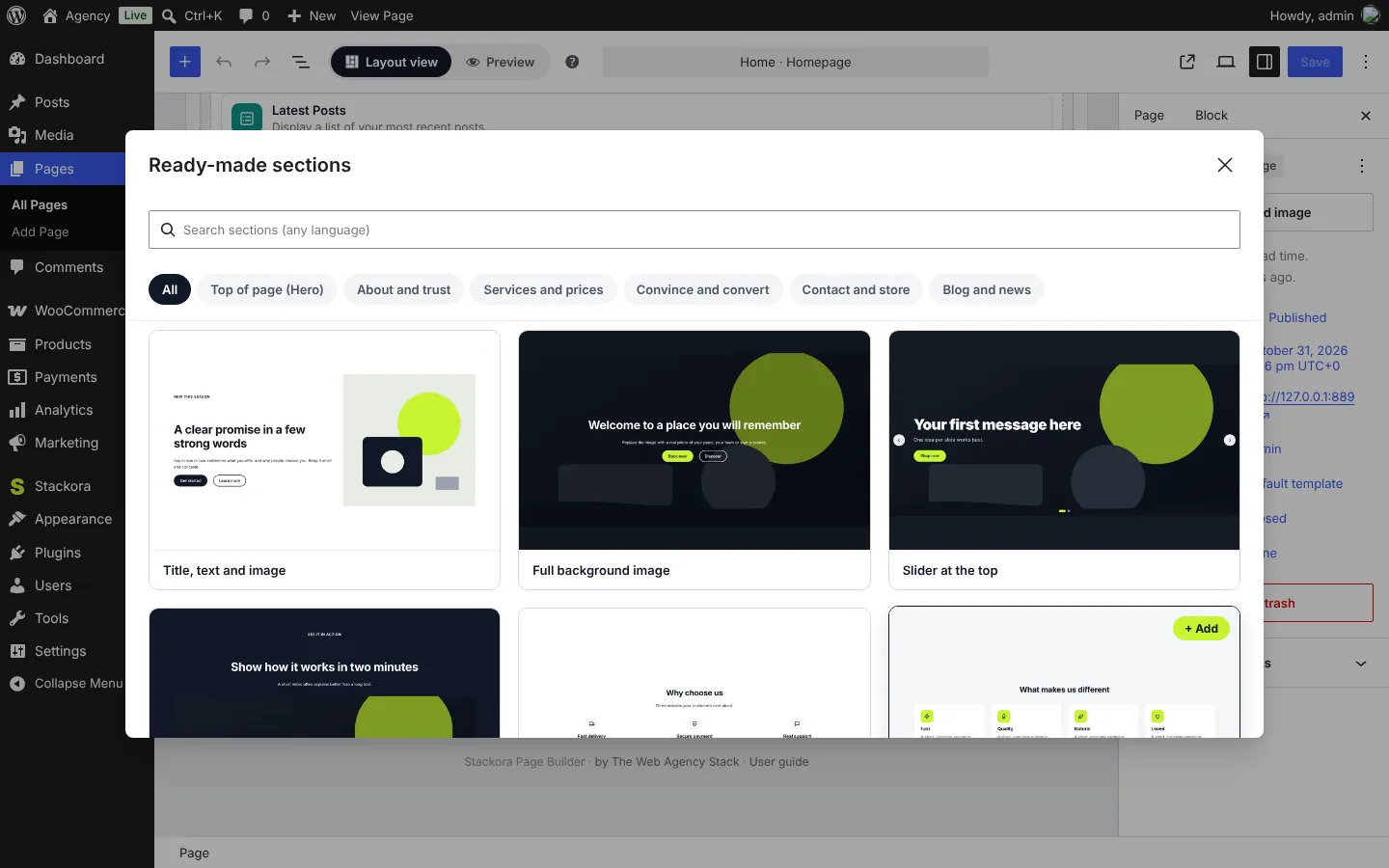
Under the last section, click Ready-made ▸. Pick a section by category (Top of page, About and trust, Services and prices, Convince and convert, Contact and store, Blog and news) or search in any language. It is added with example texts you replace.
Menus
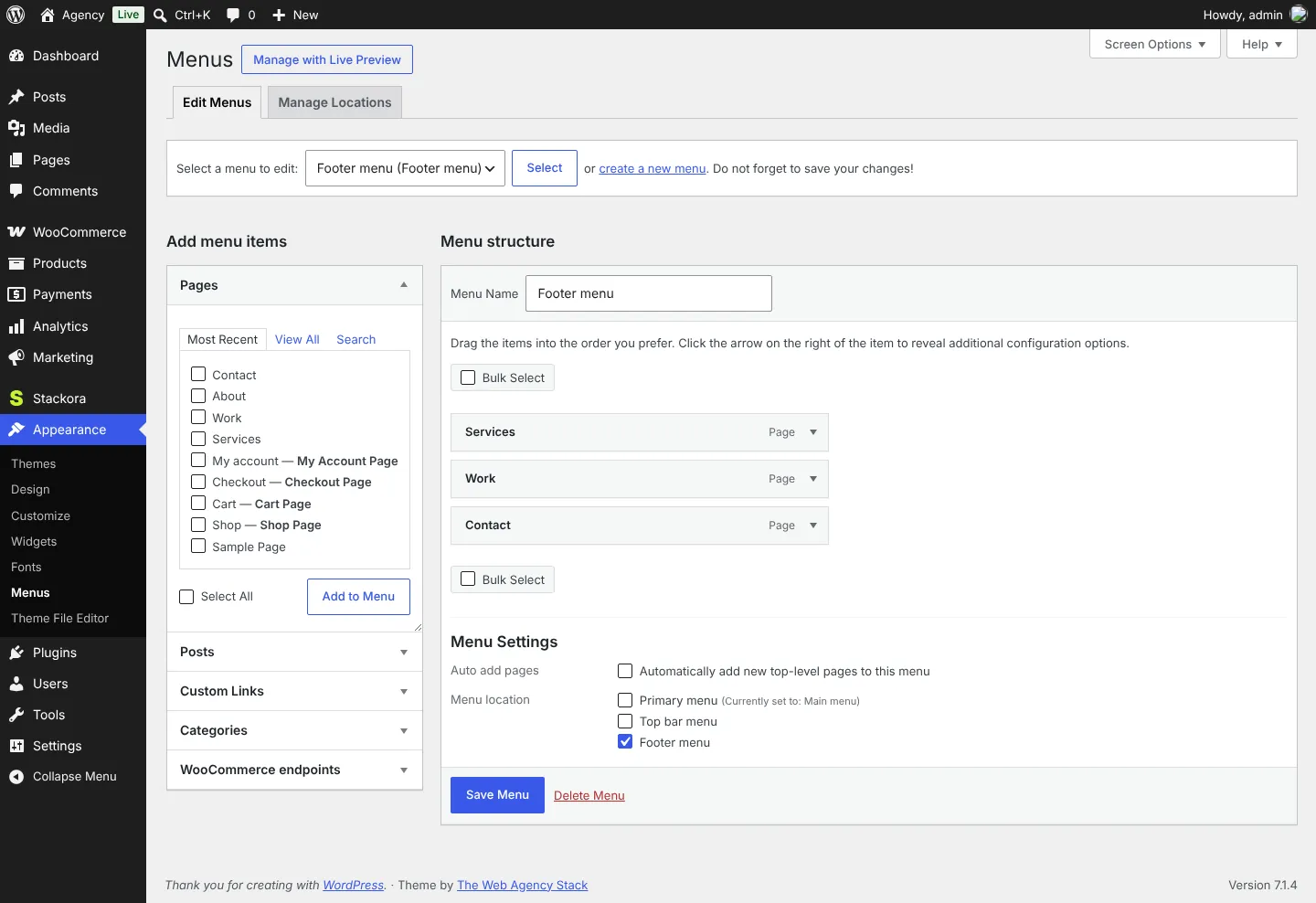
Pages appear in the menu from Appearance → Menus. The demo creates a Primary menu and a Footer menu.
Stackora by The Web Agency Stack · Screenshots taken on WordPress 7.1.4 with Stackora 0.9.20.